
How Do I Stop Double-Booking My Clients?
Double-booking happens when your appointments live in more than one place: a paper diary, a phone calendar, a booking app, someone's inbox. The fix is to keep one calendar that every booking goes into, have it block the times you are already busy, and only ever offer customers times that are genuinely free.
Why it keeps happening
- Two sources of truth. A customer books online while you promise the same slot on the phone.
- Your personal calendar is not counted. The dentist appointment or school run in your own calendar never reaches your booking page.
- No buffer. Back-to-back bookings with no time to travel or tidy up turn into overlaps in practice.
- Several people share a diary without being able to see who is free.
How to stop it
- Put every kind of booking in one calendar: customer appointments, team meetings, work sessions and blocked time.
- Connect the calendar you already use, so the times it says you are busy can never be booked.
- Set working hours, breaks and time off for each person, so booking is only possible when they actually work.
- Add a buffer after services that need one, for travel or clean-up.
- Warn before an overlap when a person adds something by hand, instead of silently allowing it.
What double-booking looks like in different businesses
- Salons, clinics and studios: a client books online for 2:00 while the front desk promises the same chair to a walk-in. The fix is one calendar that both the booking page and the desk work from, so a slot disappears the moment it is taken.
- Trades and field services: a technician is booked for two site visits in different towns an hour apart, with no travel time. Add a buffer after on-site services, or set the service length to include the drive.
- Consultants and coaches: a discovery call lands on top of a client meeting that only existed in a personal calendar. Connect that calendar so its busy times block your booking page.
- Teams sharing a diary: two people book the same colleague for different jobs. Give each person their own column and working hours, and book by person rather than "whoever is free" unless that is what you mean.
Common mistakes
- Keeping a "just in case" paper diary alongside the online one. It is always the one that is out of date.
- Letting the booking page offer times outside working hours because hours were never set per person.
- Treating blocked time as optional. If lunch, admin or travel is not on the calendar as busy, it will be booked.
- Allowing very short notice. A booking made ten minutes before the slot is often one nobody sees in time.
- Ignoring the warning when you add something by hand that overlaps. A good calendar warns you; the warning only helps if you read it.
A five-minute weekly check
- Look at next week's calendar for overlaps and back-to-back runs with no break.
- Check that time off booked by anyone on the team is in the calendar.
- Make sure every person's working hours still match reality.
- Glance at your booking rules: notice, how far ahead, buffers.
Choosing your booking rules
- Shortest notice. Two hours suits most businesses that are on site all day; 24 hours suits anyone who prepares for each appointment or travels to it. Too short, and bookings arrive that nobody sees in time.
- How far ahead. Two to four weeks keeps the calendar flexible and appointments fresh in customers' minds. Services booked well in advance, such as events or seasonal work, need longer.
- Time steps. Offering times every 30 minutes keeps the day tidy; every 15 minutes squeezes in more but can leave awkward gaps. Match the step to your shortest service.
- Automatic or reviewed confirmation. Confirm automatically when any booking is welcome. Review first when you need to check details or approve new customers, and say so on the booking page so customers know to expect a reply.
A worked example
Maria runs a two-chair hair studio. Clients book through a link on Instagram, regulars text her, and her assistant takes phone bookings into a paper book. Twice in one month two clients arrive for the same 11:00 slot.
She moves everything into one calendar: the booking link, texts and phone bookings all go into it, and the paper book goes in a drawer. She sets each person's working days and a 30-minute lunch break, adds a 15-minute buffer after colour services, and connects her personal calendar so school pick-ups block the booking page. Online booking now needs two hours' notice.
In the following month there are no double-bookings, and her assistant stops checking three places before saying yes on the phone.
Quick checklist
- Every booking, from every channel, goes into one calendar
- Working hours, breaks and time off are set for each person
- Your personal calendar is connected and its busy times block bookings
- Buffers are set after services that need them
- A minimum notice is set for online bookings
- The paper diary or old app is retired
How to do it in Spotbookr
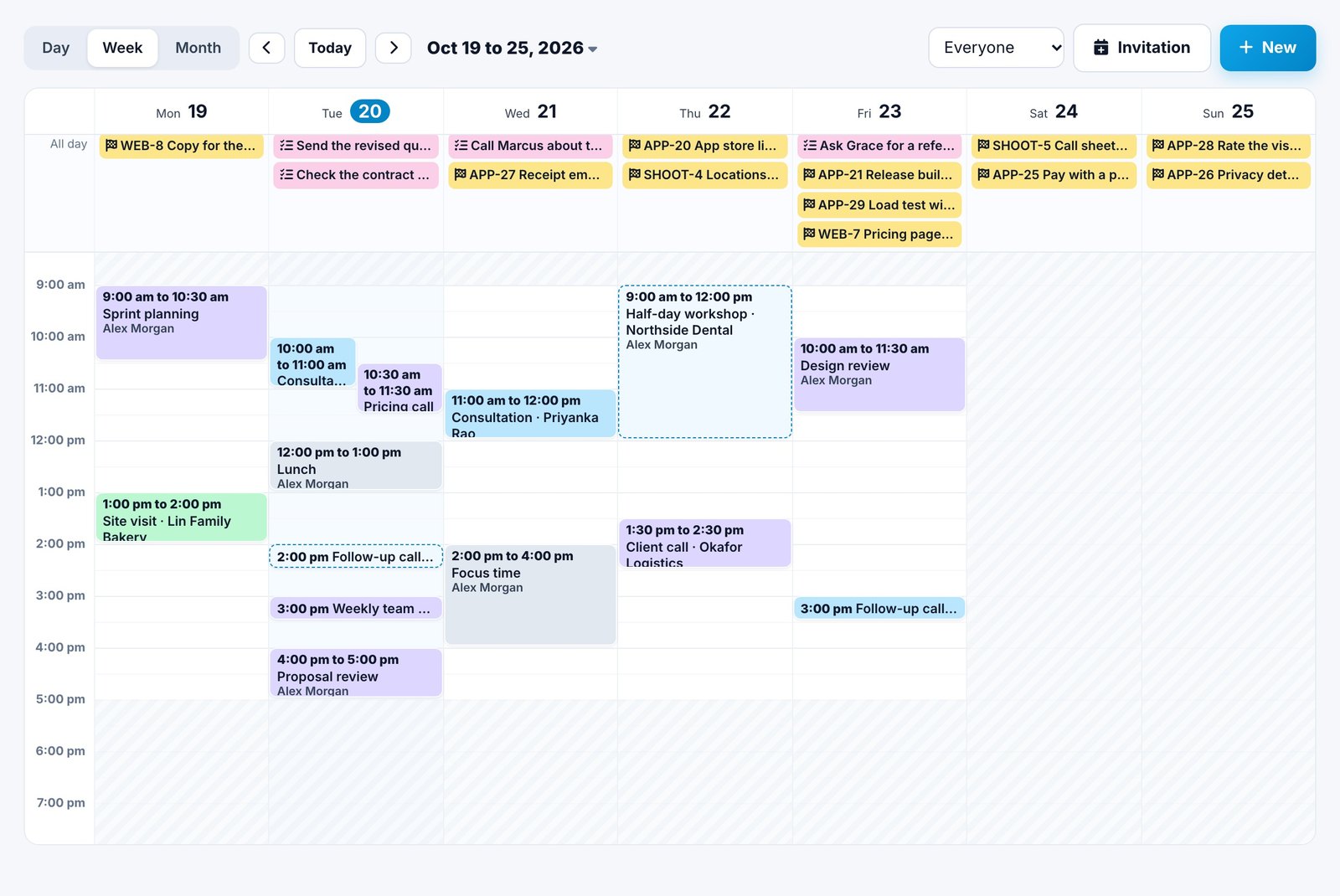
Spotbookr Scheduling keeps appointments, meetings, work sessions and blocked time in one calendar for the whole team. The week and day are a time grid, so free time is easy to see.
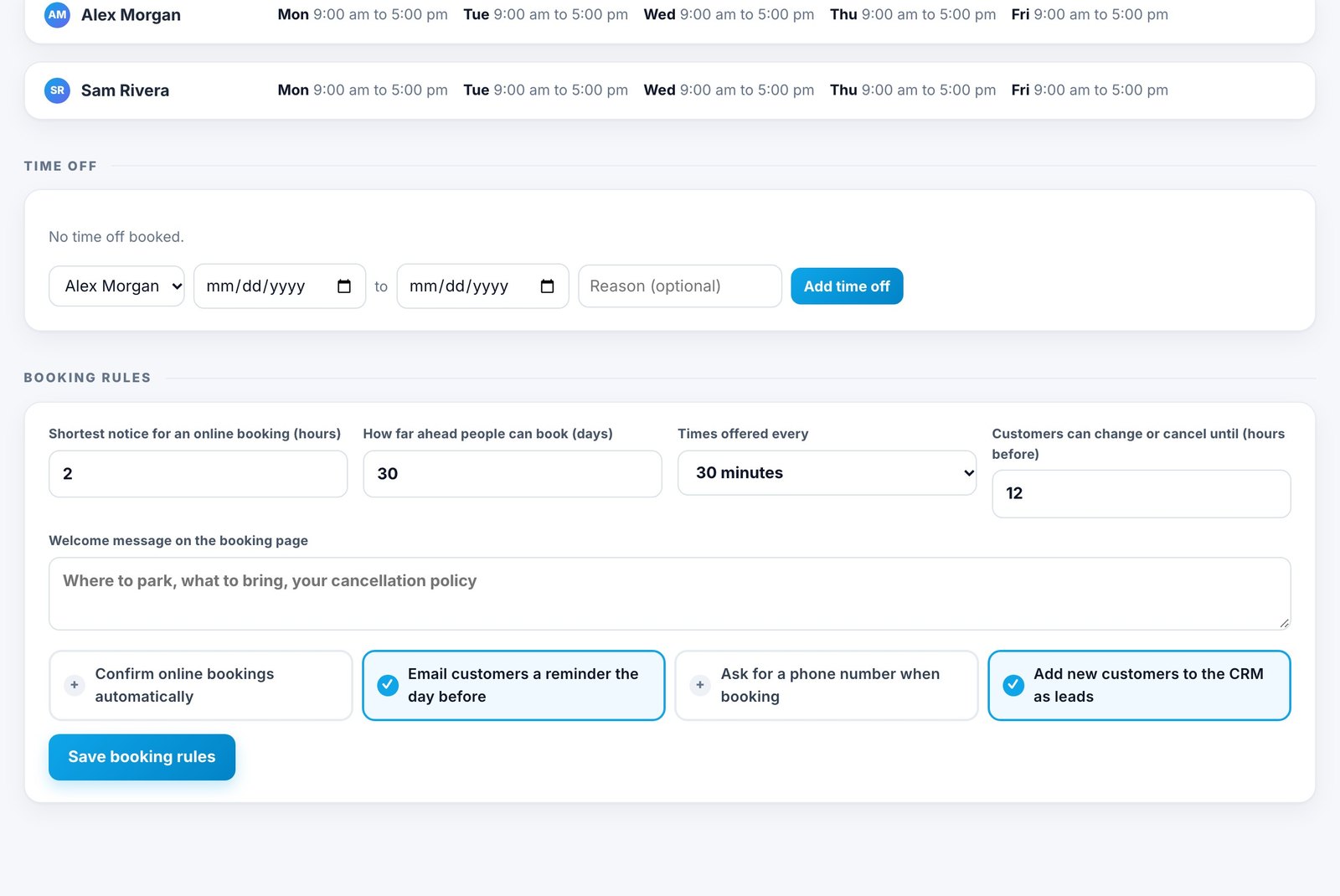
Your booking page only offers times when the person is working, free, and outside breaks and time off. Under Scheduling, Setup you set each person's hours and the booking rules: the shortest notice, how far ahead people can book, and how often times are offered.
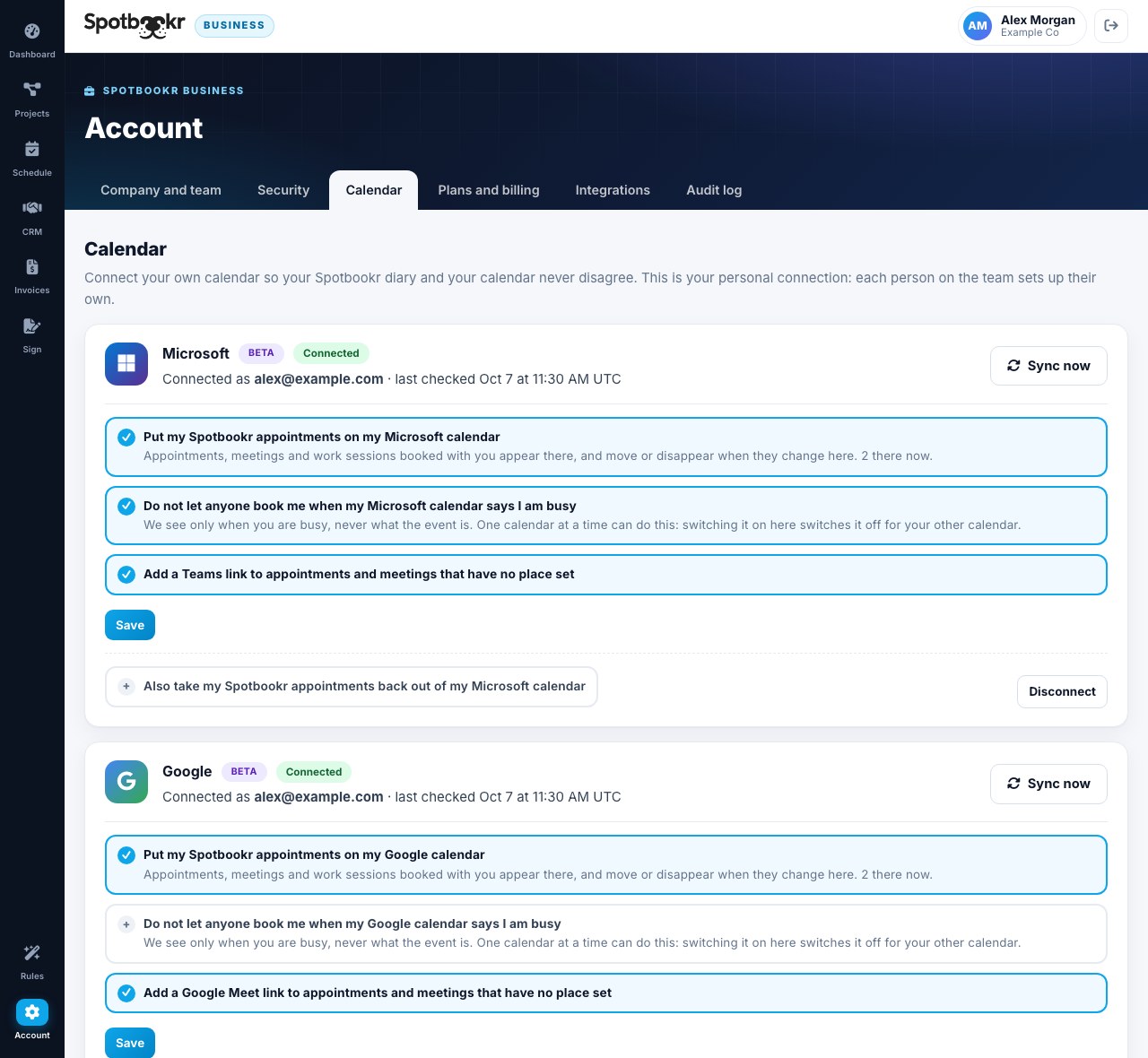
Connect Google Calendar or Outlook under Account, Calendar, and online booking is blocked whenever that calendar says you are busy. Spotbookr sees only when you are busy, never what the event is. If you add something by hand that clashes, the calendar warns you and lets you add it anyway if you mean to.
Related questions
Can customers see my other appointments?
No. Your booking page shows only the times that are free. It never shows what else is in your calendar.
What if I work at more than one location?
Keep one calendar per person rather than per place, and add the location to each appointment. A person cannot be in two places at once, and one calendar per person is what prevents it.
Should I leave gaps between appointments?
If a service needs travel, set-up or clean-up, yes. A buffer after that service keeps the next booking from starting before you are ready.
What should I do if a double-booking has already happened?
Contact the customer you can move most easily as soon as you notice, apologise, and offer two or three alternative times. A quick, honest message keeps the relationship; finding out at the door does not.
Do I need a separate booking app if I already have a calendar?
A plain calendar shows when you are busy but does not stop customers booking over it. A booking page connected to your calendar does both.
Can two people be booked for the same appointment?
Yes, for things like a meeting or a two-person job. Add both people to the entry, and the calendar treats both as busy.
How do I handle walk-ins without double-booking?
Add the walk-in to the calendar the moment they arrive, even for a short service. The slot is then taken for anyone booking online.
More on setting it up in the Help Center: Set up online booking and Connect your Google or Outlook calendar. You can also try Spotbookr with sample data.