
Product Update: Personal Booking Pages, a Cleaner Booking Page, and a Fix
A client who wants to book you should not have to scroll a list of your colleagues first. This update gives everyone on your team a booking page of their own, makes the booking page look like your business instead of ours, and adds a booking page just for your team.
A Booking Page for Every Person
Your company booking page still lists everyone who takes bookings, with a Who with? step. Now each person who takes bookings also has a page of their own.
- Opens with you already chosen. There is no Who with? step. Your client picks a service, a day and a time, and the appointment is booked with you.
- Only what you offer. The page shows the services you are set up to provide, and only your open times.
- One address, easy to share. It is your company's booking address followed by your name, for example
/book/your-company/alex-morgan. Put it in your email signature, on your website or in a message. - Find yours in Scheduling. Choose My booking page at the top of Scheduling to open it and copy the address.
Every person on your account gets their own page, at no extra cost.
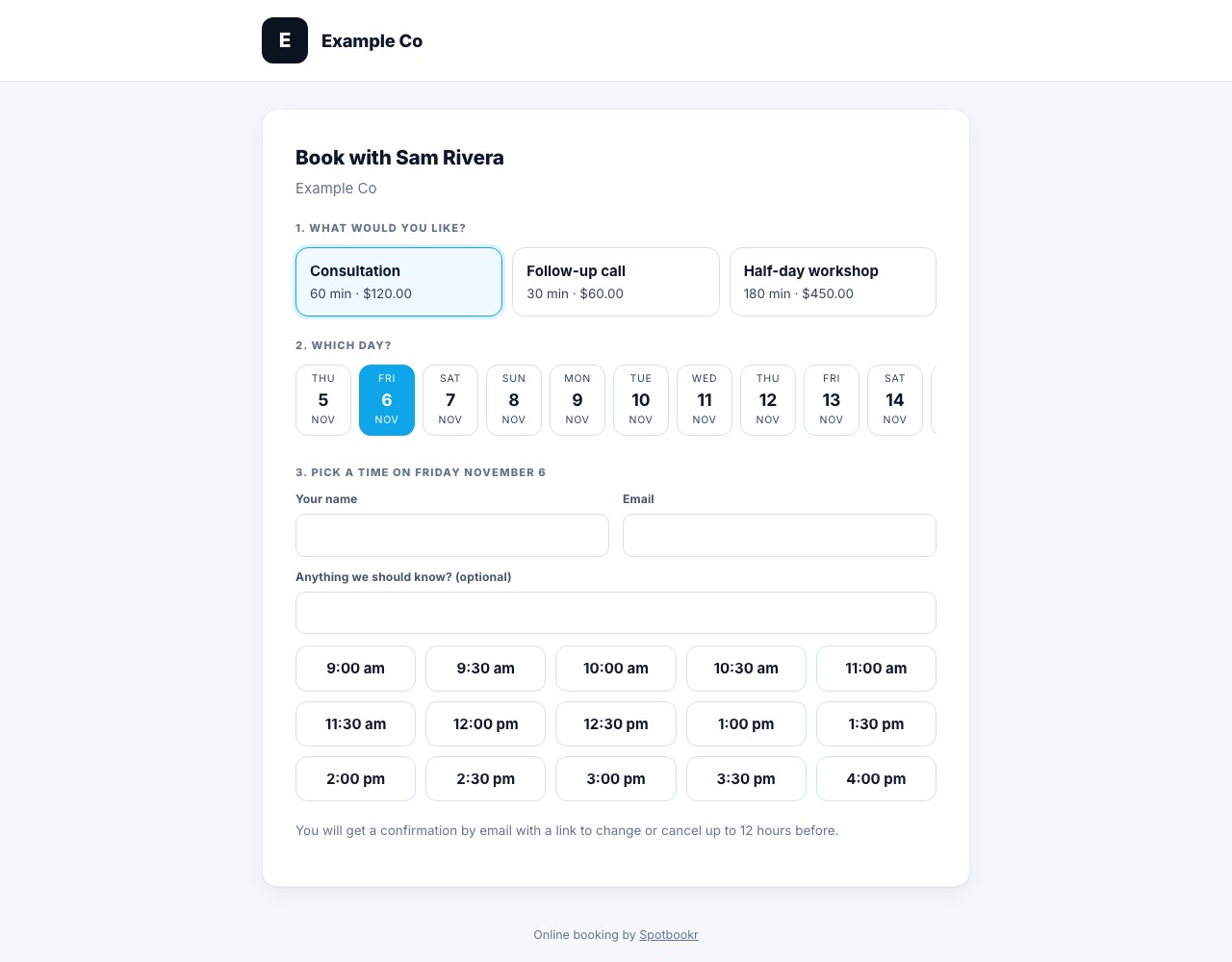
Your Business, Not Ours
The pages your clients book on now carry your business's name and logo at the top, and nothing else from Spotbookr Business: no menus and no sign-in button. That stays true even when you open the page yourself while signed in. A small "Online booking by Spotbookr" line sits at the bottom.
- Your logo is the one you set for your invoices and estimates under Invoicing, Products and settings. Without a logo, the page shows your business name.
- The confirmation page your clients see after booking, where they can add it to their calendar, change the time or cancel, has the same look.
- A clearer message appears when you are not taking online bookings: it now tells clients to contact you directly.
A Booking Page for Your Team
Internal meetings have their own booking page now. Only people signed in to your company's account can open it.
- Team meeting types. In Scheduling, Setup, set Who can book it to Team only for a meeting type, such as a one-to-one or a project review. It then appears only on the team page, never on the page your clients see.
- See what is already planned. The team page lists your company's upcoming internal meetings, so a colleague can find a time that works before booking.
- Find it in Scheduling under Team booking.
Fix
- Dates in Projects read the same way everywhere. In the list view, a date you cannot edit now shows in the same short form as one you can, such as "Nov 12", and the date picker's label matches.
More improvements are coming soon.